

Create permission schemes Enterprise Grid
A permission scheme is a named bundle of permissions that you can attach to one or more roles. Schemes are the modular building blocks of custom roles — instead of defining every permission individually for each role, you create reusable schemes and combine them.
For background, see Roles and permissions. To create roles that use schemes, see Create custom roles.
Why use permission schemes
You could theoretically attach permissions directly to a role, but schemes give you three advantages:
- Reuse. The same scheme can power multiple roles. Update the scheme once, and every role using it picks up the change.
- Modularity. Build focused schemes that do one thing well, then combine them. A "Release Manager" role might combine Project Contributor + a custom Release Publishing scheme.
- Clarity. Schemes have descriptive names and clear scopes, making role definitions easier to read and audit.
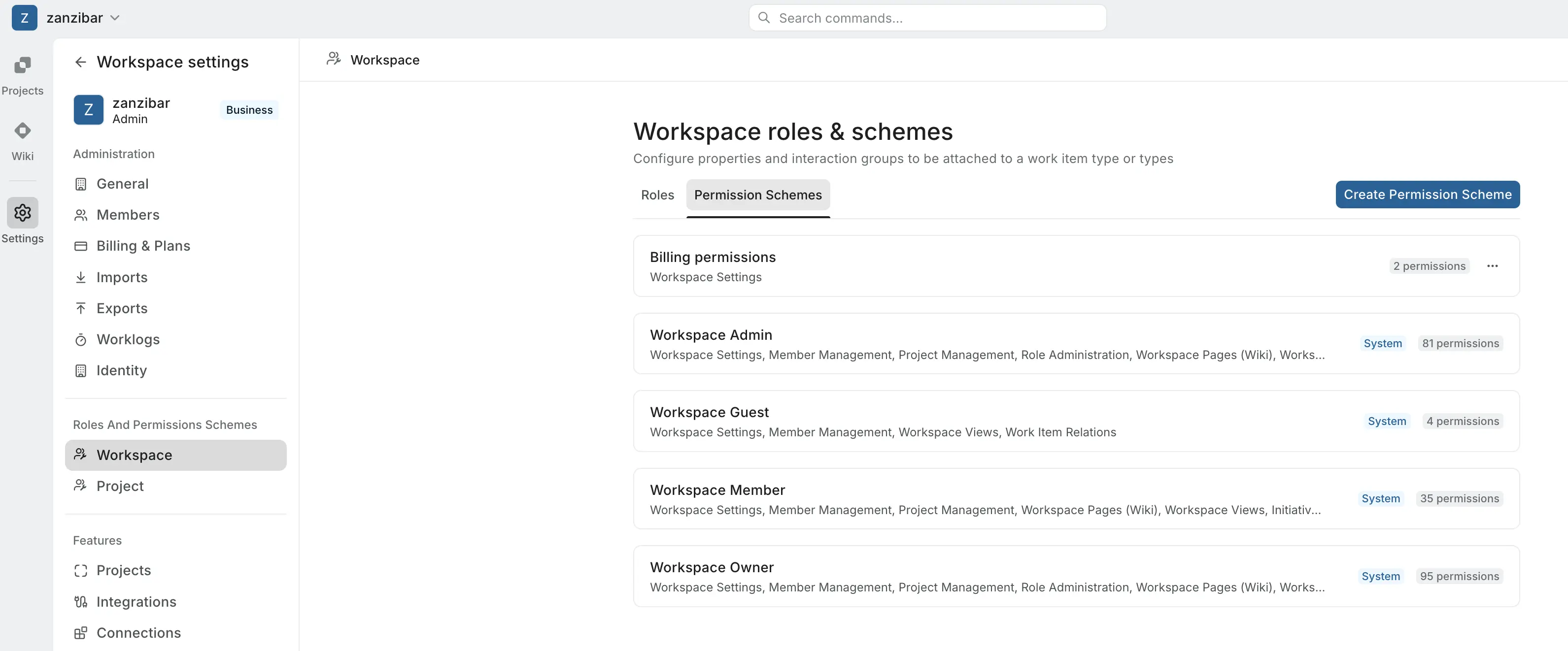
Create a workspace permission scheme
Workspace schemes contain permissions that apply at the workspace level.
- Navigate to Workspace settings > Roles and permissions schemes > Workspace.
- Click the Permission Schemes tab.
- Click Create Permission Scheme in the top right.
- In the Create permission scheme form:
- Scheme name — a short, descriptive name.
- Description — optional explanation of the scheme's purpose.
- In the permissions section, check the boxes for the permissions this scheme should grant.
- Use Select All within a group to enable every permission in that group, or Search permissions at the top to find specific permissions.
- Click Create permission scheme.
The scheme is saved and immediately available to attach to roles.
Create a project permission scheme
Project schemes contain permissions that apply within projects.
- Navigate to Workspace settings > Roles and permissions schemes > Project.
- Click the Permission Schemes tab.
- Click Create Permission Scheme.
- Fill in the scheme name and description.
- Select permissions from the project-level groups.
- Click Create permission scheme.
Edit a permission scheme
- Navigate to the Permission Schemes tab.
- Click the … menu next to the scheme.
- Select Edit permission scheme.
- Update the name, description, or selected permissions.
- Save your changes.
Changes propagate to roles
Editing a scheme immediately updates the effective permissions of every role that has it attached. Members assigned those roles will have their permissions refreshed on their next request.
Delete a permission scheme
- Click the … menu next to the scheme.
- Select Delete permission scheme.
- Confirm.
Schemes attached to roles
Deleting a scheme removes its permissions from any role using it. If a role had that scheme as its only source of permissions, the role will be left with no effective permissions until you attach another scheme.
System schemes can't be deleted
System schemes (e.g., Workspace Owner, Workspace Admin, Workspace Member, Workspace Guest) are tagged "System" and cannot be edited or deleted.
Attach a scheme to a role
- Open the role from the Roles tab.
- In the Permissions Schemes section, click Attach Permissions Schemes.
- Check the schemes you want to attach.
- Click Add.
The role's effective permissions become the union of all attached schemes.
How permissions combine
When a role has multiple schemes attached, the effective permission set is the union of all of them. The combination rules are:
- Unconditional grants win over conditional ones. If one scheme grants
workitem:deleteand another grantsworkitem:delete+creator, the role gets unconditionalworkitem:delete. - More permissive wins. If schemes grant the same permission, it's still granted (there's no "negative override" within scheme combinations — that requires GAC).
- Permission dependencies are auto-managed. Enabling a permission auto-enables its prerequisites (e.g., enabling Edit auto-enables View). Disabling a prerequisite auto-disables permissions that depend on it.