

Manage project members
Manage who has access to your project and what they can do by adding members and assigning roles.
For background on the available roles, see Member roles.
Prerequisites:
- You must be a Project Admin or Workspace Admin to manage project members.
- Users must be workspace members before they can be added to projects.
Add members to a project
Users must be workspace members before you can add them to a project.
If the user isn't in your workspace yet:
- First, invite them to the workspace.
- Once they accept the workspace invitation, proceed with adding them to the project.
Add existing workspace members to your project:
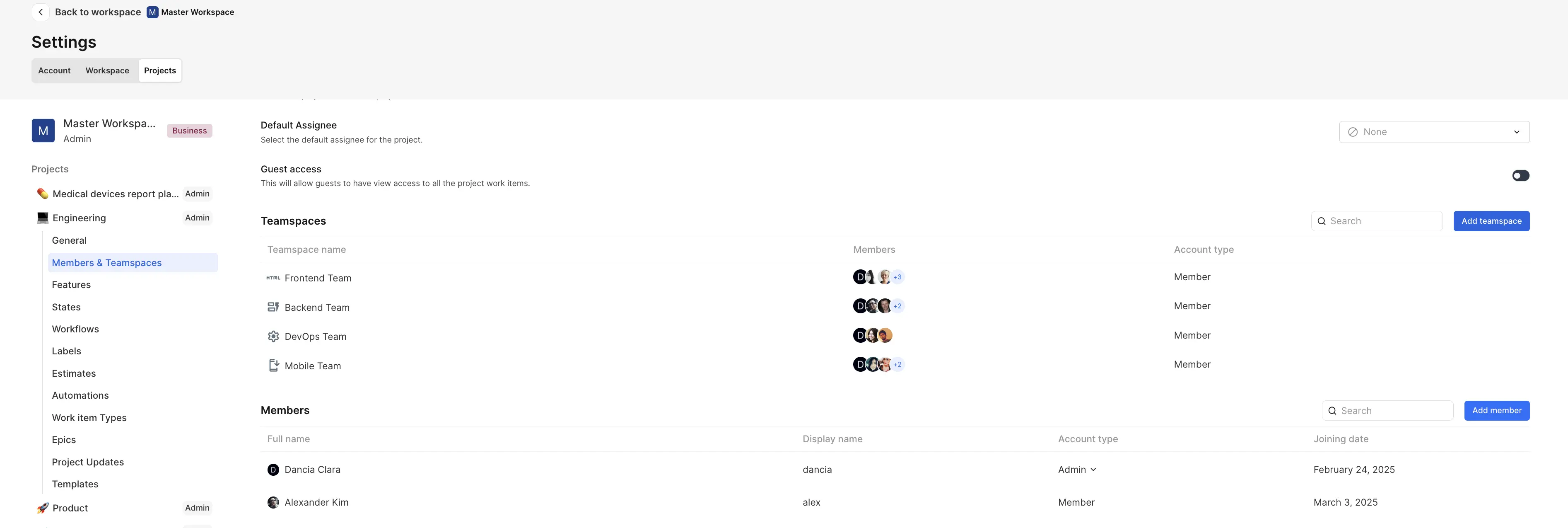
- Navigate to Project Settings > Members & Teamspaces.
- Scroll to the Members section.
- Click Add member.
- Search for and select the workspace member.
- Assign their role: Admin, Contributor, Commenter, or Guest.
- Click Add.
The member now has access to the project with the permissions defined by their role.
Project roles
- Admin — Full project access including settings, member management, and all features.
- Contributor — Can create and manage work items, epics, cycles, modules, pages, and views. Can delete content they created themselves.
- Commenter — Can view all work items in the project and add comments and reactions. Can also create intake submissions.
- Guest — Limited access. Can submit intake forms and view, edit, and delete intake issues they created.
Renamed roles
The role previously called Member is now called Contributor. Permissions are unchanged. The previous Guest view access toggle has been replaced by the Commenter role. To grant view access plus commenting, assign the Commenter role.
See Permissions matrix for the complete breakdown.
Workspace Guest restriction
If you're adding a workspace Guest to your project, you can only assign them the Guest or Commenter role. Attempting to assign Admin or Contributor returns an error. This guardrail prevents external collaborators from being accidentally over-privileged.
Change a project member's role
Update project member roles as responsibilities change.
- Navigate to Project Settings > Members & Teamspaces.
- Find the member in the Members list.
- Click the Role dropdown next to their name.
- Select the new role.
The role change takes effect immediately.
Remove a member from a project
Remove members who no longer need project access.
- Navigate to Project Settings > Members & Teamspaces.
- Find the member in the Members list.
- Click the three dots next to their name and select Remove.
- Confirm the removal.
The member loses access to the project immediately but remains in the workspace.
What happens when you remove a member:
- They can no longer access the project or its work items.
- Work items they created remain in the project.
- Their comments and activity history are preserved.
- They remain a workspace member (unless removed separately).
Removing workspace Owners and Admins
Removing a workspace Owner or Admin from a project removes the project membership record but does not restrict their access — they retain access to all project content via their workspace role.
Default assignee
Configure a default assignee to ensure all work items get assigned when created without an explicit assignee.
- Navigate to Project Settings > Members & Teamspaces.
- Find the Default Assignee setting.
- Click the dropdown and select a project member.
- The setting saves automatically.
How default assignee works:
- When someone creates a work item without selecting an assignee, the default assignee is automatically assigned.
- This ensures no work items are left unassigned.
- Useful for projects where a specific person triages new work items.
- The creator can still manually assign work items to different members.
To disable: Select None from the Default Assignee dropdown.
Project lead
Designate a project lead who serves as the primary point of contact for the project.
- Navigate to Project Settings > Members & Teamspaces.
- Find the Project Lead setting.
- Click the dropdown and select a project member.
- The setting saves automatically.
What a project lead does: The project lead is the go-to person for questions about the project's execution, goals, and status. This is an informational role that helps team members know who to contact, not a permission level.
Project lead vs. Project Admin:
- Project lead is a designation that identifies a point of contact.
- Project Admin is a role with specific permissions.
- They can be the same person but don't have to be.
Project subscribers Business
Project subscribers receive notifications for all work items in the project — status changes, comments, and updates. This is useful for project leads, managers, or stakeholders who need visibility across the entire project without being subscribed to individual work items.
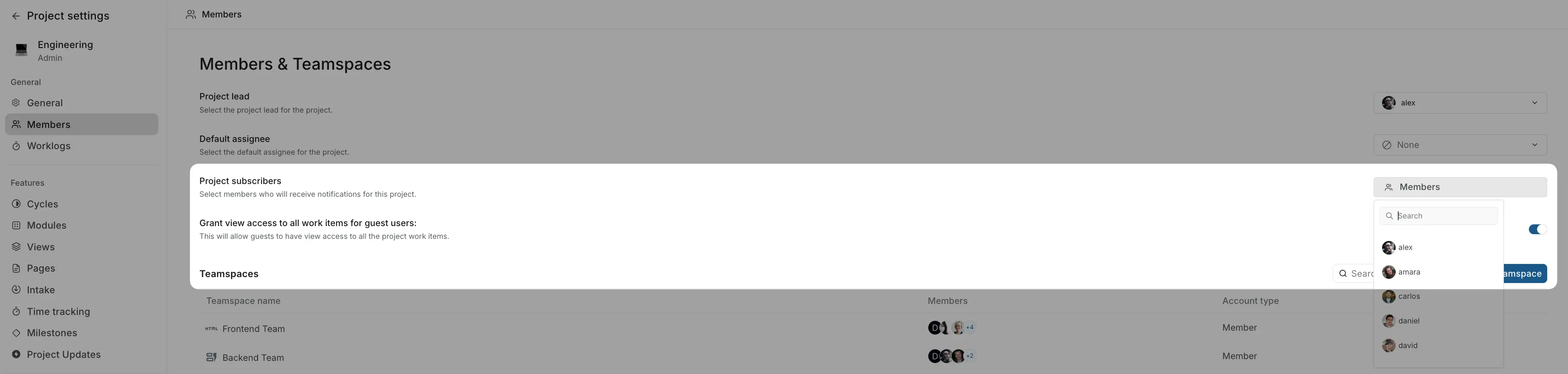
By default, members only receive notifications for work items they're assigned to, have created, or are subscribed to individually. Adding someone as a project subscriber ensures they stay informed about all project activity.
To configure project subscribers:
- Navigate to Project Settings > Members.
- Under Project subscribers, click to open the member picker.
- Select the members who should receive notifications for all work items.
Only project admins can manage project subscribers.
View project member activity Enterprise Grid
INFO
The Enterprise plan is currently only available for self-hosted instances. If you're interested in Enterprise features for your self-hosted deployment, contact sales@plane.so for pricing and licensing information.
Track member actions like additions, role changes, and removals to maintain visibility over project access management.
To view member activity:
- Navigate to Project Settings → Members & Teamspaces.
- Click Activity in the top right corner of the Members section.
The activity panel shows recent project member events:
- Member additions — who added which members to the project and when.
- Role changes — role updates with who made the change and when.
- Member removals — who removed members from the project.
Each activity entry shows the action taken, who performed the action, and when it happened (relative time like "6 days ago" or "3 days ago").
This audit trail helps project admins monitor membership changes and verify that access permissions are correct. Activity is retained for project history.
Leave a project
If you no longer need access to a project, you can leave it yourself. Click the … menu next to your own name in Project Settings > Members & Teamspaces and select Leave.
You'll lose access to the project immediately but remain in the workspace. If you need to rejoin later, a Project Admin or Workspace Admin will need to add you again.
Last admin protection
If you're the only Project Admin, you cannot leave the project. Promote another member to Admin first.
How users join projects
Users can become project members in two different ways, and understanding both helps you manage your project team effectively.
Direct project membership is when you specifically invite users to your project and assign them roles. These members have access only to the projects you've added them to, and you have full control over their permissions.
Teamspace-based membership happens automatically when your project is linked to a Teamspace. All members of that teamspace automatically receive the role assigned on the teamspace-to-project link, making it ideal for teams that collaborate across multiple projects.
Users can have both types of access simultaneously. When this happens, Plane evaluates both grants — direct membership is checked first, and either source can grant the access.
For example, if someone is a Guest on your project but joins a linked teamspace whose link grants Contributor access, they get Contributor access to the project through the teamspace. If they're already an Admin, they keep their Admin role through their direct membership.