

Manage workspace members
Manage who can access your workspace and what they can do.
This guide covers inviting members, importing them in bulk, changing roles, removing members, and viewing audit history.
For background on the available roles, see Member roles.
Invite members to your workspace
You can add members individually or in bulk using CSV import.
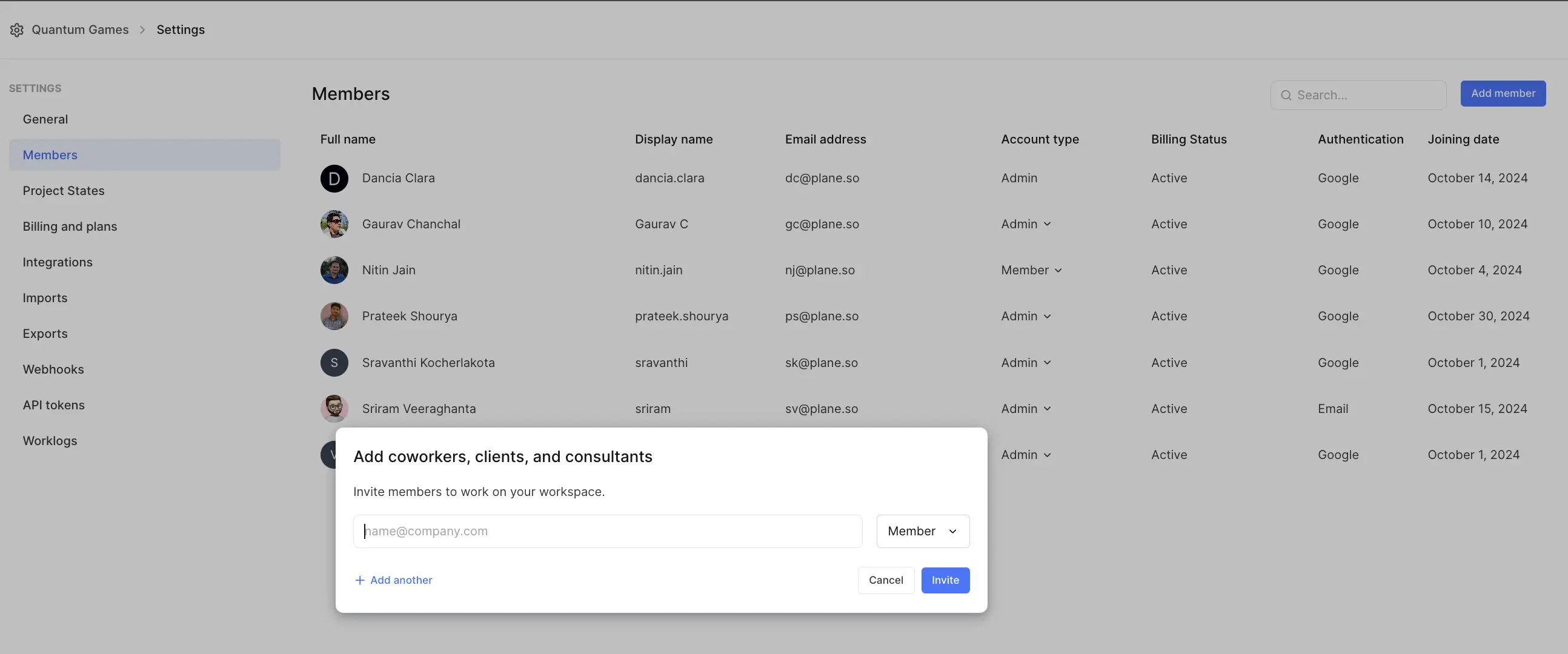
- Navigate to Workspace settings > Members.
- Click Add member.
- In the modal:
- Enter the email address of the person you're inviting.
- Select their role.
- To invite multiple people at once, click Add another and repeat.
- Click Invite.
The invited person receives an email notification with instructions to join your workspace.
If the invitation isn't accepted:
- The invitation remains pending until accepted or declined.
- You can manually remove pending invitations using the Remove option (see below).
Import members from CSV Pro
Workspace admins can bulk invite members by importing a CSV file. This is useful when onboarding teams or migrating users from another system.
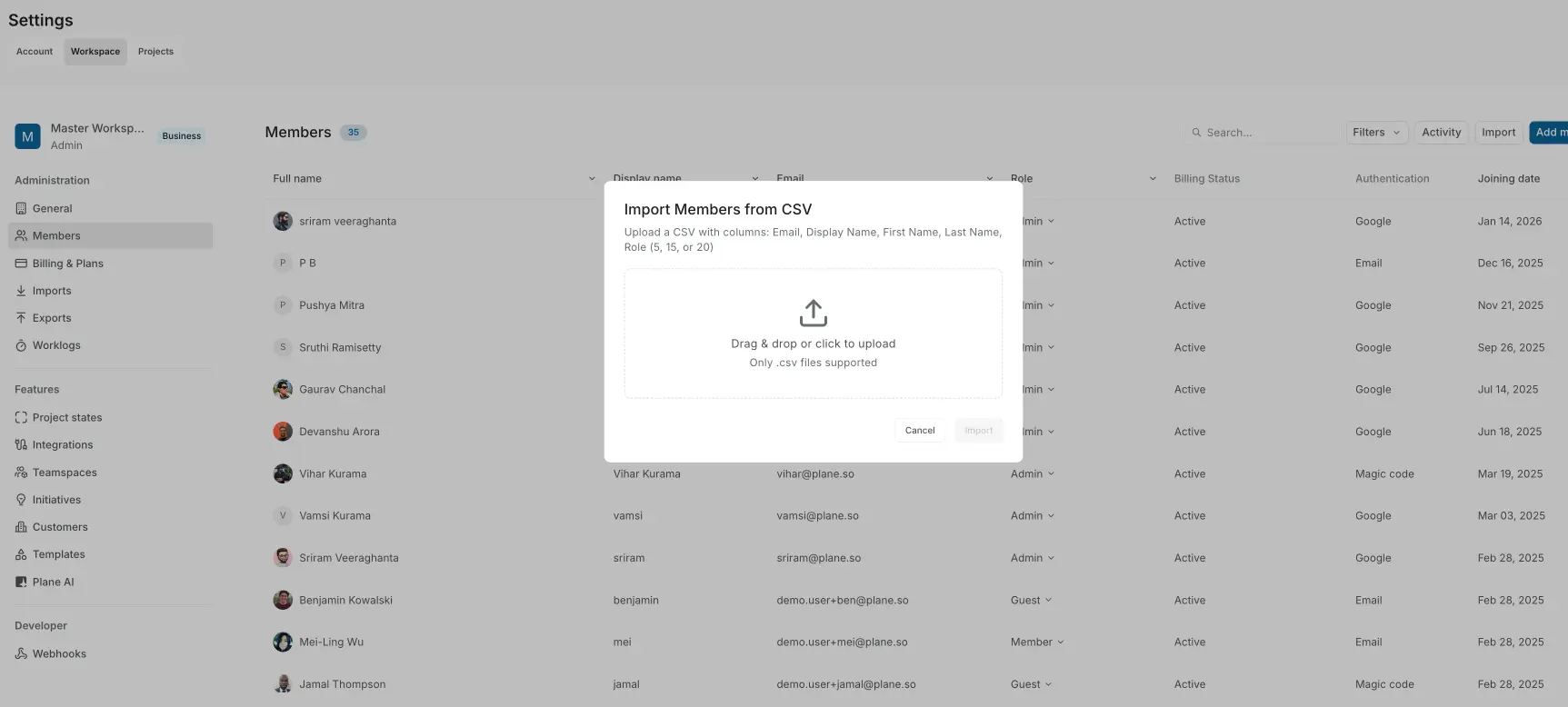
To import members:
- Navigate to Workspace settings → Members.
- Click Import.
- Upload your CSV file (drag and drop or click to browse).
- Select Import to bulk invite the members.
Imported users are added directly to the workspace.
CSV format requirements
Your CSV must contain these columns in this exact order:
Email, Display Name, First Name, Last Name, RoleExample CSV:
Email,Display Name,First Name,Last Name,Role
alex@company.com,Alex Chen,Alex,Chen,member
sarah@company.com,Sarah Kim,Sarah,Kim,admin
mike@company.com,Mike Rodriguez,Mike,Rodriguez,guest
Valid roles:
owner— Workspace Owneradmin— Workspace Adminmember— Workspace Memberguest— Workspace Guest
Backward compatibility
For backward compatibility, numeric role values still work: 5 for Guest, 15 for Member, 20 for Admin. We recommend using slugs.
Important notes
- Only
.csvfiles are supported. - Valid users appear immediately in the Members list after import.
- Invalid entries are skipped (check your CSV for errors if some users don't appear).
Self-hosted Plane instance
Ensure your SMTP server is properly configured to send invite emails successfully. See Configure SMTP for email for more information.
Change a member's role
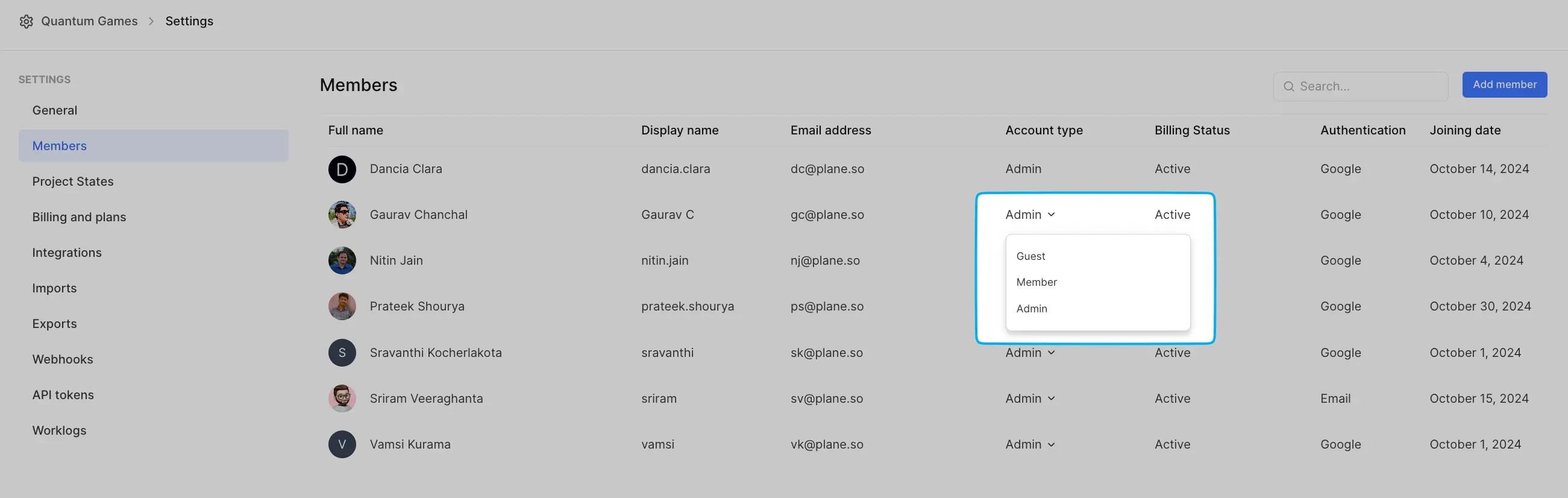
- Navigate to Workspace settings > Members.
- Find the member whose role you need to change.
- Click the role dropdown next to their name.
- Select the new role.
The role change takes effect immediately.
View workspace member activity Business
Track member actions like invitations, role changes, and removals to maintain visibility over workspace management.
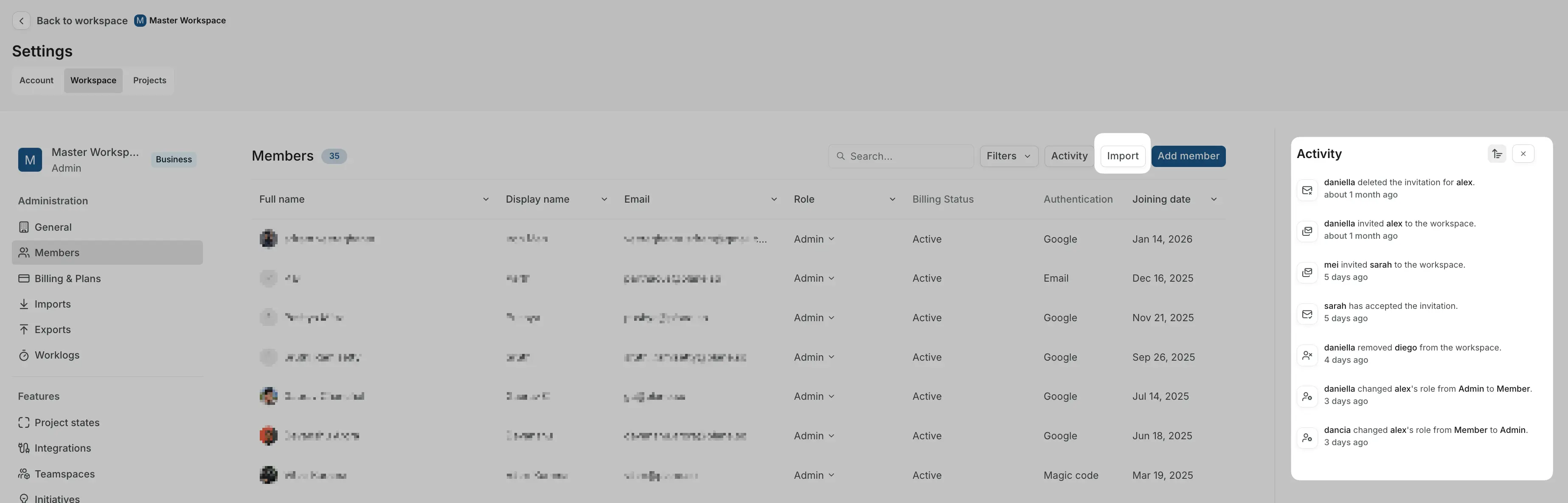
To view member activity:
Navigate to Workspace settings → Members.
Click Activity in the top right.
The activity panel shows recent workspace member events:
- Member invitations - Who invited which members and when
- Invitation acceptances - When members accepted and joined the workspace
- Role changes - Role updates with who made the change and when
- Member removals - Who removed members from the workspace
Each activity entry shows:
- The action taken
- Who performed the action
- When it happened (relative time like "about 1 month ago" or "5 days ago")
This audit trail helps workspace admins monitor membership changes and troubleshoot access issues. Activity is retained for workspace history and can be filtered by clicking on specific activity types.
Remove a member from your workspace
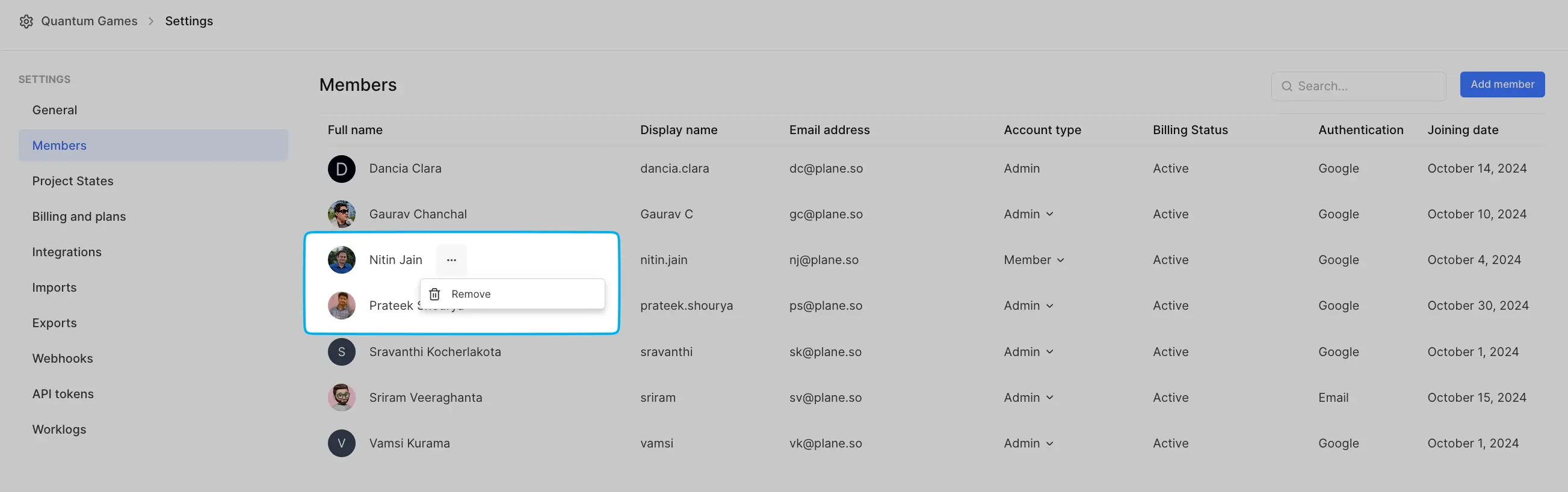
- Navigate to Workspace settings > Members.
- Find the member you want to remove.
- Click Remove next to their name.
- Confirm the removal.
The member loses access to the workspace and all its projects immediately.
WARNING
Removing members doesn't change your seat count or billing. You must remove seats separately.
Leave a workspace
If you no longer need access to a workspace, you can leave it yourself. Click the … menu next to your own name in Workspace Settings > Members and select Leave.
You'll lose access to the workspace and all its projects immediately. If you need to rejoin later, a Workspace Admin or Owner will need to invite you again.
Last admin protection
If you're the only Owner or Admin in the workspace, you cannot leave. Promote another user to Owner or Admin first.