

Custom roles Enterprise Grid
Custom roles let you define exactly what users in your workspace can do.
Build a "Release Manager" role that can publish but not delete, a "QA Reviewer" who can comment and edit but not create, or anything else your organization needs.
For background, see Roles and permissions. To understand permission schemes (the building blocks of custom roles), see Create permission schemes.
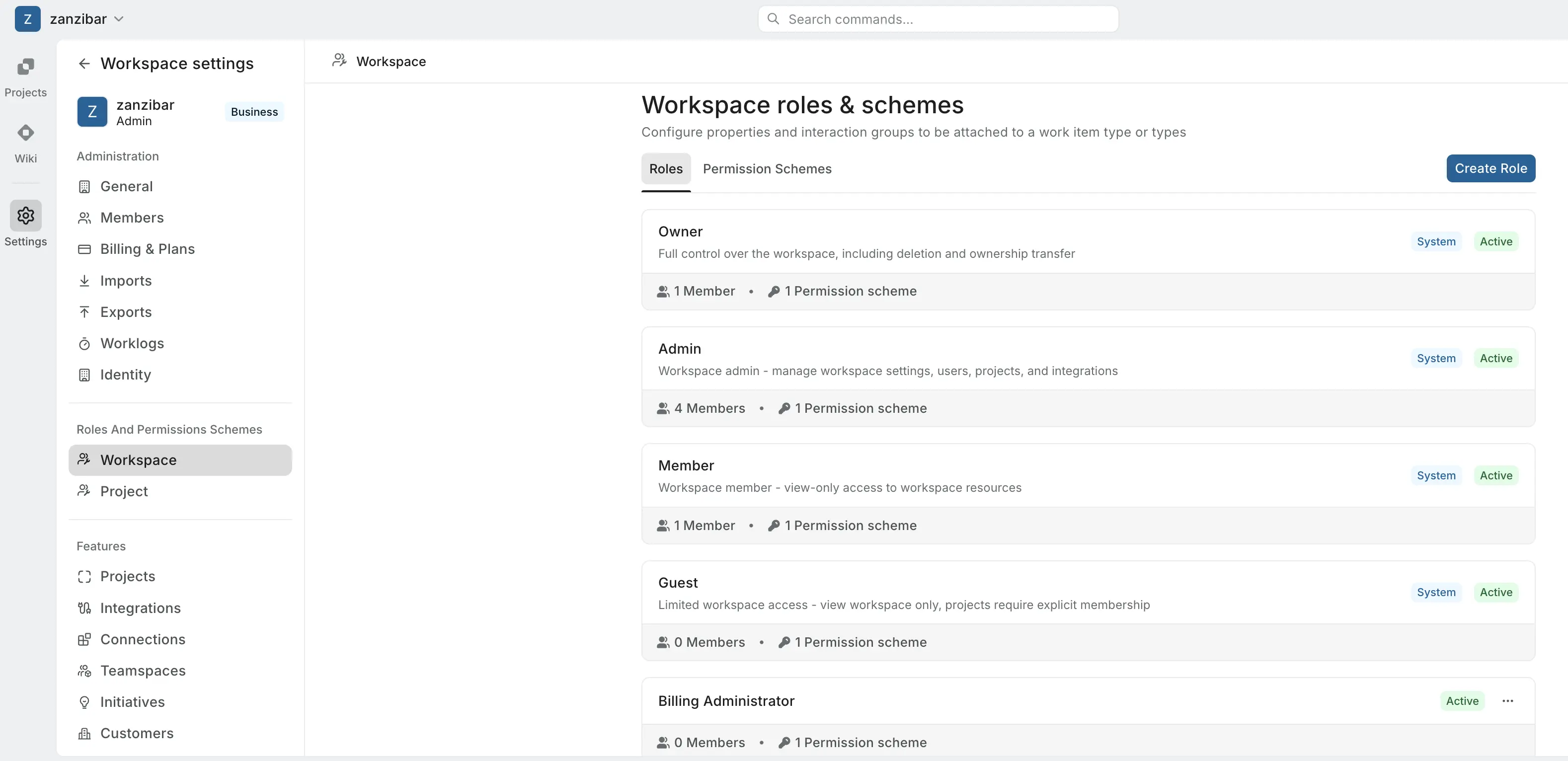
Create a custom workspace role
Custom workspace roles control access to workspace-level resources — settings, members, integrations, the wiki, and more.
- Navigate to Workspace settings > Roles and permissions schemes > Workspace.
- Click the Roles tab.
- Click Create Role in the top right.
- In the Create new role modal:
- Enter a Role title (e.g., "Billing Administrator").
- Add an optional Description to clarify the role's purpose.
- Click Create role.
The role is created with no permissions attached. You'll be taken to the role's detail page where you can attach permission schemes.
Create a custom project role
Custom project roles control access within projects.
- Navigate to Workspace settings > Roles and permissions schemes > Project
- Click the Roles tab.
- Click Create Role.
- Enter the Role title and Description.
- Click Create role.
Attach permission schemes to a role
A role's effective permissions are the combined set of all schemes attached to it.
- Open the role from the Roles tab.
- In the Permissions Schemes section, click Attach Permissions Schemes.
- Select one or more schemes from the right-hand panel:
- System schemes (e.g., Workspace Member, Workspace Admin, Project Contributor) come pre-built and cannot be modified.
- Custom schemes can be created and edited — see Create permission schemes.
- Click Add.
The role now has all permissions from the selected schemes. If a scheme grants workitem:edit and another scheme grants workitem:edit+creator, the unconditional permission wins — the role can edit any work item.
Edit a custom role
- Navigate to Workspace settings > Workspace or Project under Roles And Permissions Schemes.
- Click the … menu next to the role.
- Select Edit role.
- Update the title, description, or attached permission schemes.
Changes take effect immediately for all members assigned the role. Cached permission decisions for affected users are invalidated automatically.
Delete a custom role
- Click the … menu next to the role.
- Select Delete role.
- If members are assigned the role, you'll be prompted to choose a replacement role. All affected members will be reassigned to the replacement.
- Confirm.
System roles can't be deleted
System roles (Owner, Admin, Member, Guest, Contributor, Commenter) cannot be deleted.
Constraints on custom roles
A few rules govern what custom roles can and cannot do:
- Cannot include reserved permissions. Custom roles cannot grant Delete Workspace, Transfer Ownership, or full-access wildcards. These are reserved for the Owner role.
- Workspace-scoped. Custom roles are defined per workspace. They don't propagate to other workspaces.
- Counted as paid seats. Members assigned custom roles count as paid seats for billing.
Base a custom role on a system role
A common pattern is to create a custom role that's "system role X plus extra permissions." For example, a "Senior Contributor" role that has all Contributor permissions plus the ability to manage labels and states.
- Create the new role with a title and description.
- Attach the system permission scheme (e.g., Project Contributor) to inherit those permissions.
- Create or attach a custom scheme that adds the extra permissions you want.
One-time inheritance
The custom role inherits the system scheme's permissions at the moment of attachment. If the system scheme is updated later, your custom role automatically reflects the changes (since it references the same scheme).